Weeks 1-2 - Build and Program the Rover
Page scope: hardware build and first bring-up
This chapter explains how I chose the platform, built the rover, and brought up the first motor, encoder, CAN, and controller paths. It separates tests that worked on real hardware from later work such as calibrated odometry, closed-loop speed control, localization, and SLAM.
File guide
Core — read these first
main.c— motor map (MotorPosition), encoder readout, CAN heartbeat, 20 ms control loopprotocol.py— CAN message contract between STM32 and Pi
Recommended
PS2_Drive_Test.py— controller input to motor commands, heartbeat threadencoder_monitor.py— raw four-wheel encoder display for harness verification
Infrastructure — safe to skip
mcp2515.c— MCP2515 SPI driverPS2.py— PS2 controller GPIO/SPI drivercan_interface.py— SocketCAN wrapperSummerSLAM.ioc,CMakePresets.json,CMakeLists.txt— CubeMX configuration and build system
What I wanted to build
I wanted a platform that another student can understand, rebuild, and change without copying every part.
The first two weeks had one practical goal: turn a set of mechanical and electrical parts into a rover that can accept a command and return encoder data. That required several smaller steps:
Choose the wheel layout and frame.
Decide what must fit on each deck.
Split high-level computing from real-time control.
Set up the STM32 pins, timers, and build tools.
Test one motor before testing all four.
Read all four encoders.
Send commands and feedback between the STM32 and Raspberry Pi.
Add a hand controller for drive tests.
The final platform uses two printed decks, four omni wheels, a Raspberry Pi 4B, and an STM32F411. The route was not direct. I first chose an MCU with too few timers, spent more time on CAN than UART needs, and lost several boards in two electrical accidents. Those mistakes are part of the build process, so I include them instead of showing only the final rover.
Part 1 - Build the hardware
Why I chose an X-drive
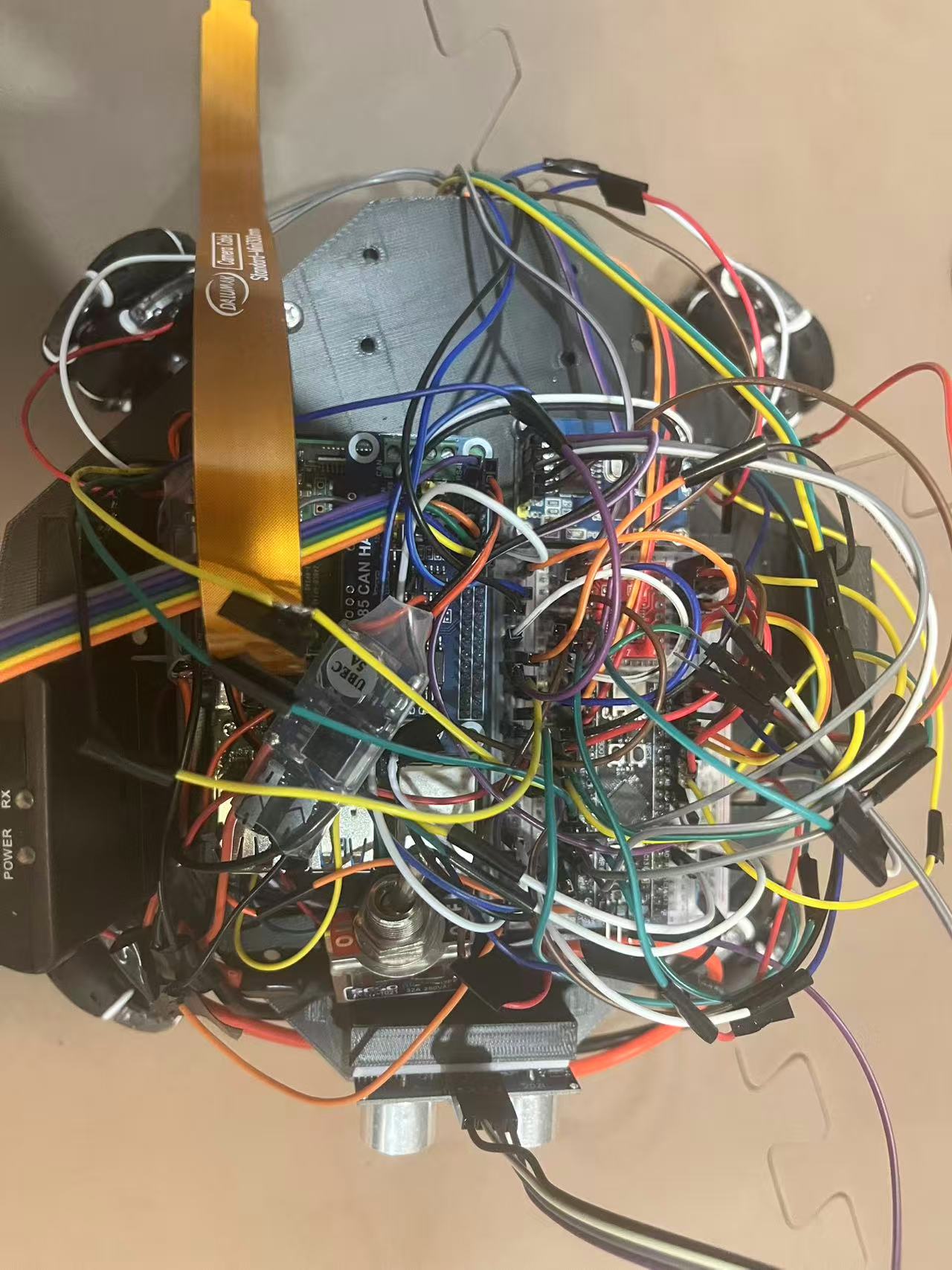
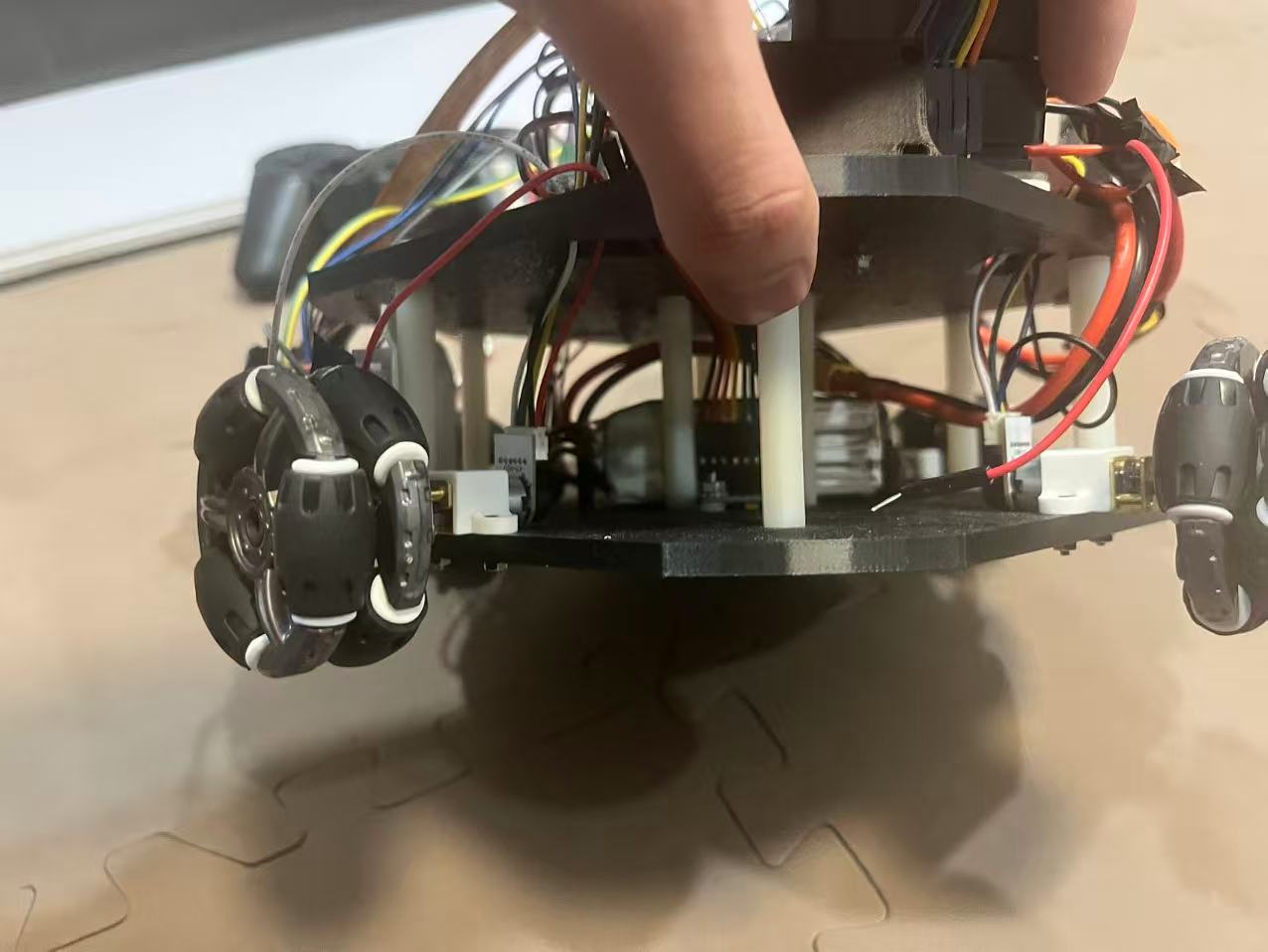
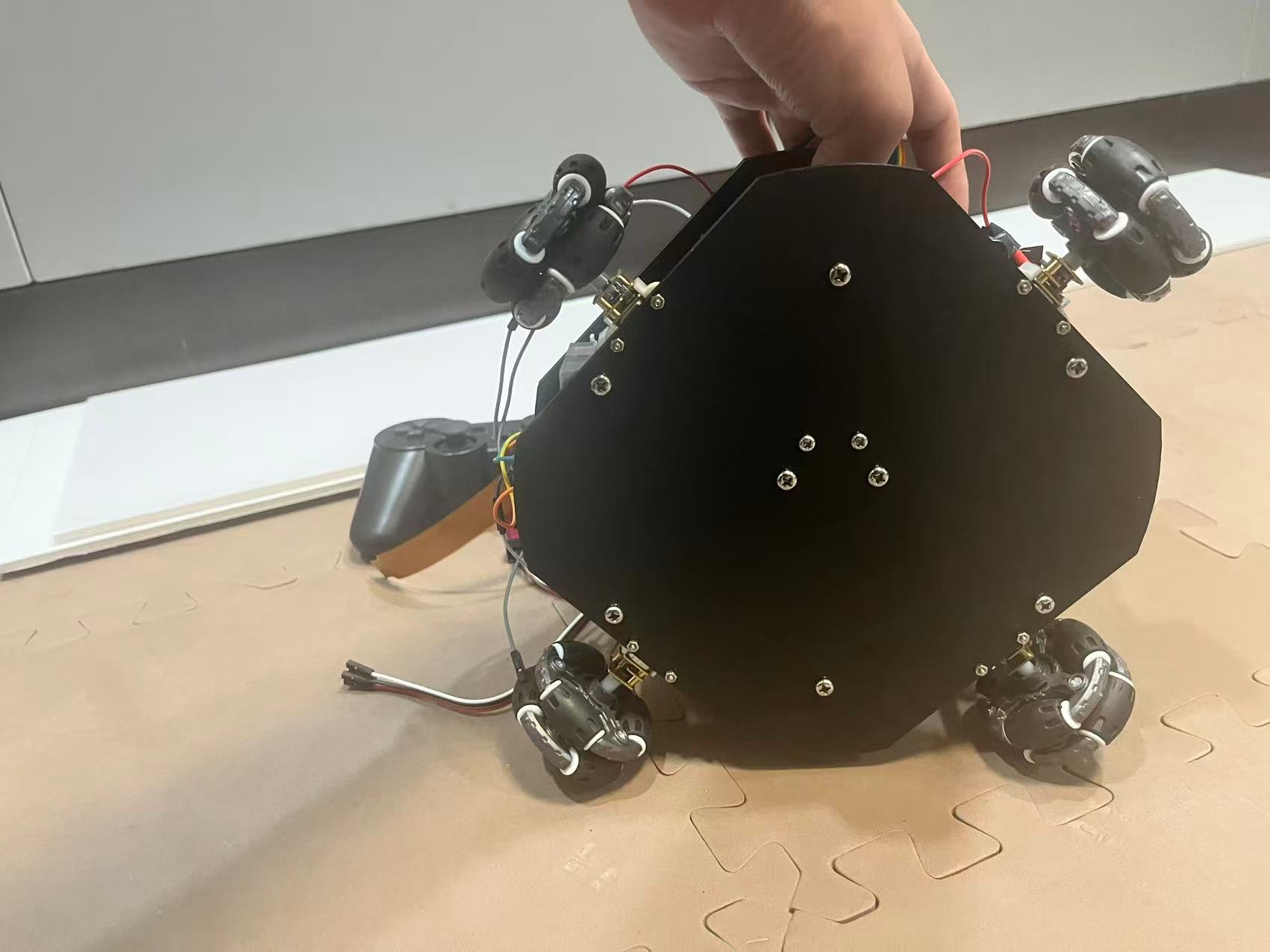
I chose a four-wheel X-drive because it is holonomic. The rover can move forward, sideways, or diagonally without turning first, and it can also rotate in place.
Most beginner robots use two-wheel differential drive. That layout is simpler, but it is also covered by many existing tutorials. The X-drive gave this project a different motion model and forced me to understand the kinematics rather than copy a familiar two-wheel solution.
Start from a reference
My first mechanical reference was the MERL ROSIE project. I used it to understand how a small rover can stack its frame and electronics. I did not copy its plate shape or part layout.
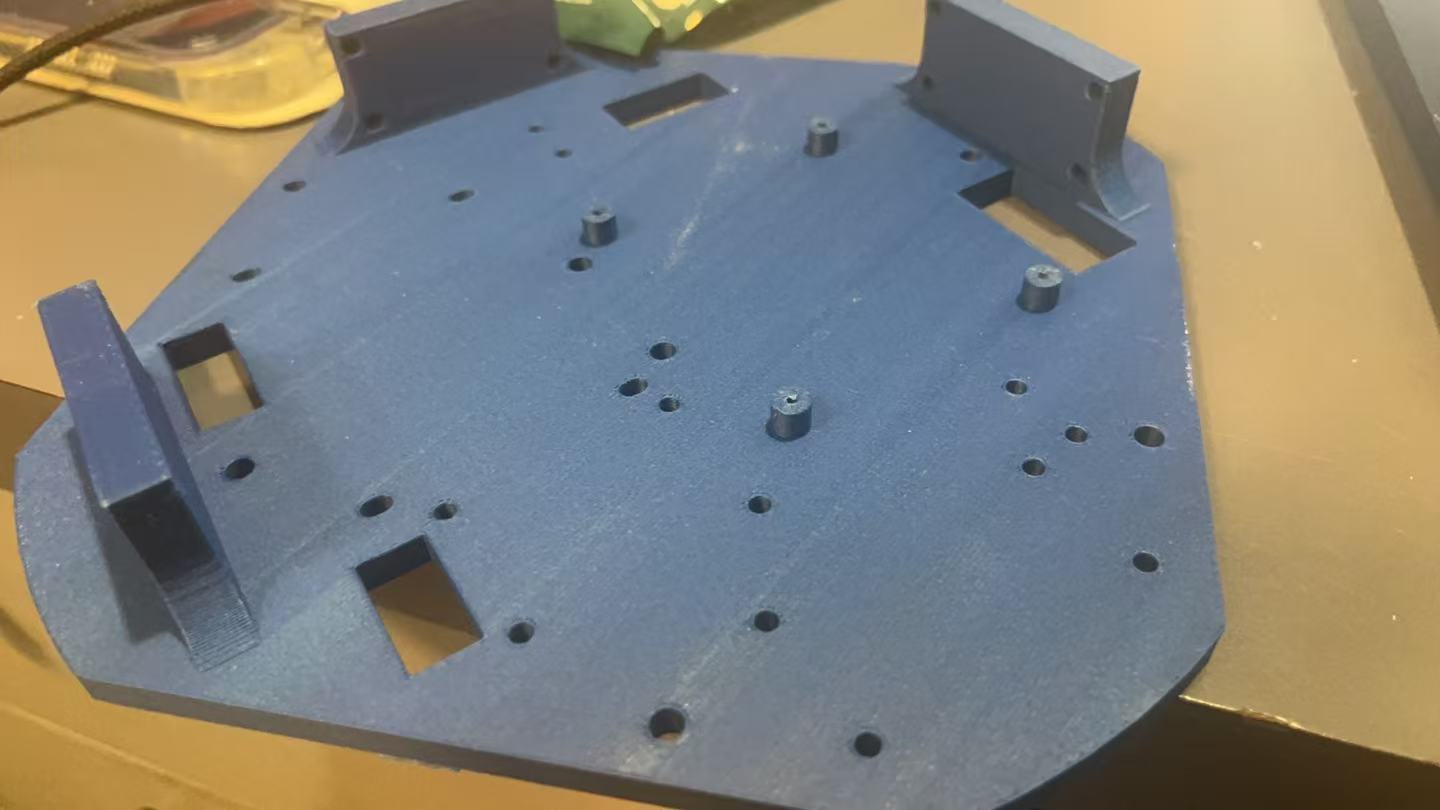
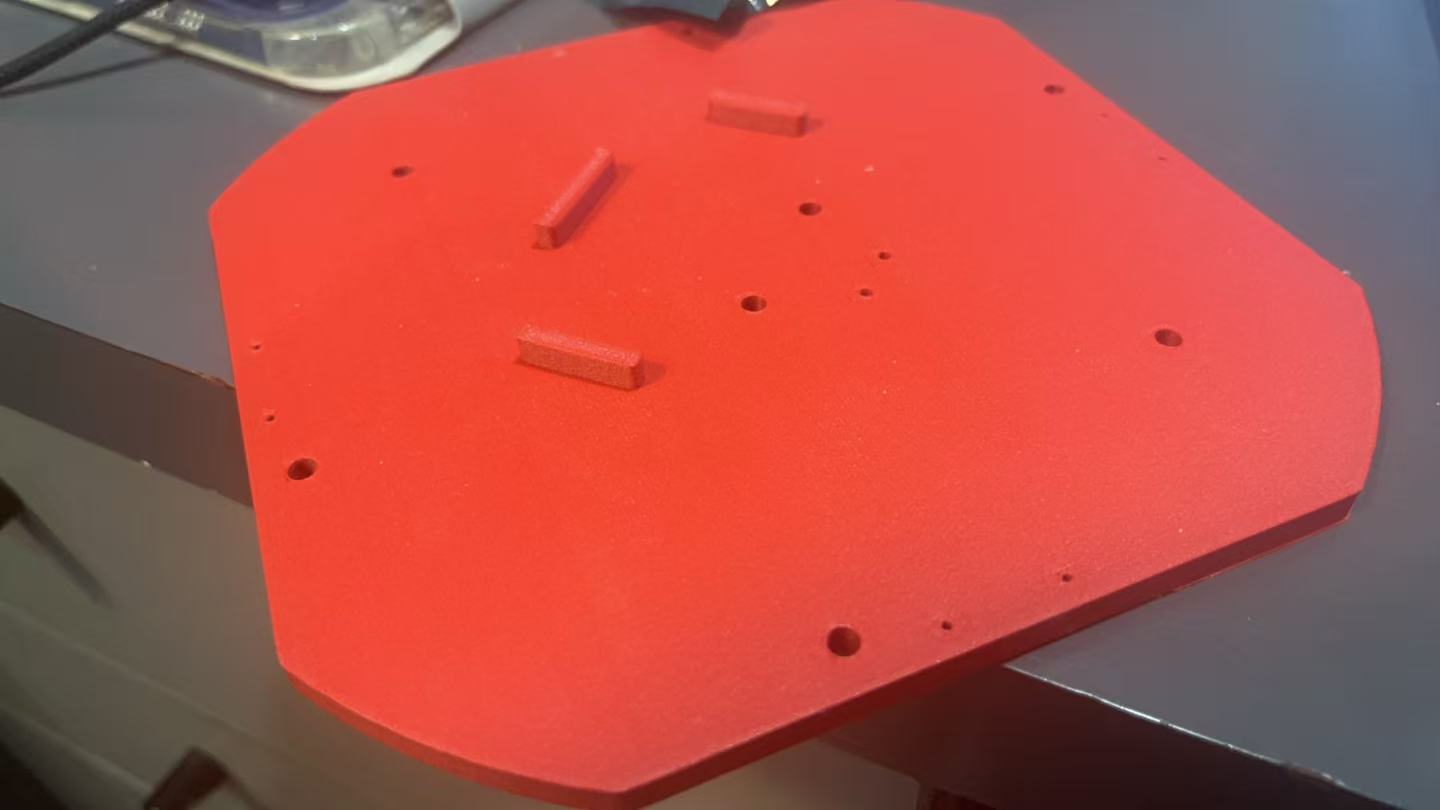
I chose the simplest frame I was able to make: two matching plates joined by standoffs. I started with a square, rounded the corners, and sized the plate around the Raspberry Pi. The exact outline is not important. The plate only needs to hold the wheels in the correct geometry and leave enough space for the electronics.
Design the two plates
I used common M4 screws and nylon standoffs. The two plates are similar, which keeps the part count simple and makes replacement easier.
The clean SolidWorks view shows the plate shape and the main mounting holes.
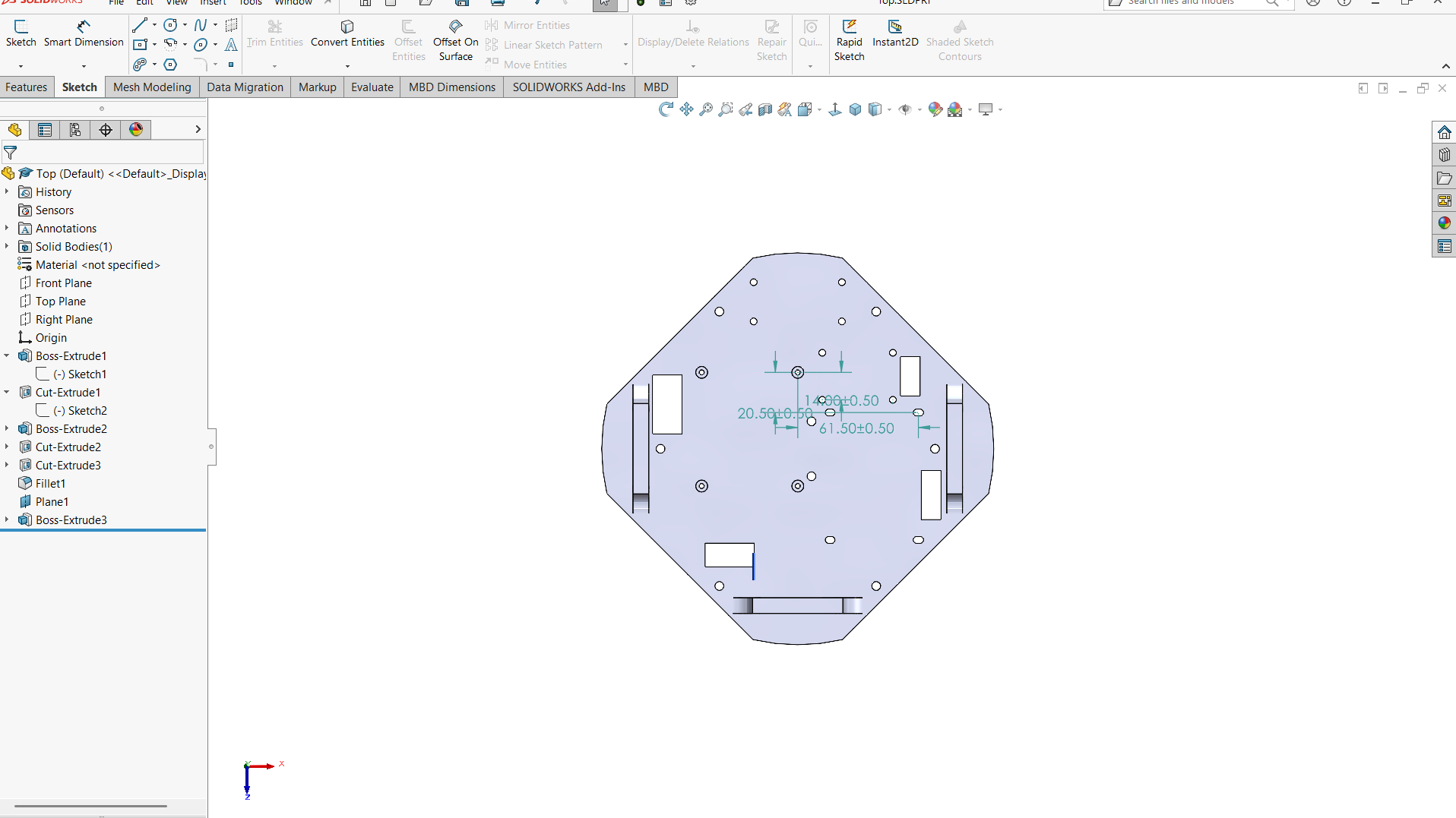
SolidWorks top view of the plate.
The next two screenshots show my working sketches. They preserve the real design history, but too many dimensions are visible at the same time. Use them as a reference for the CAD process.
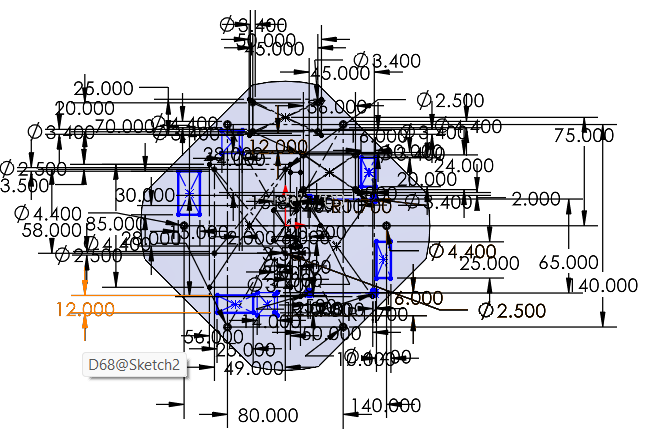
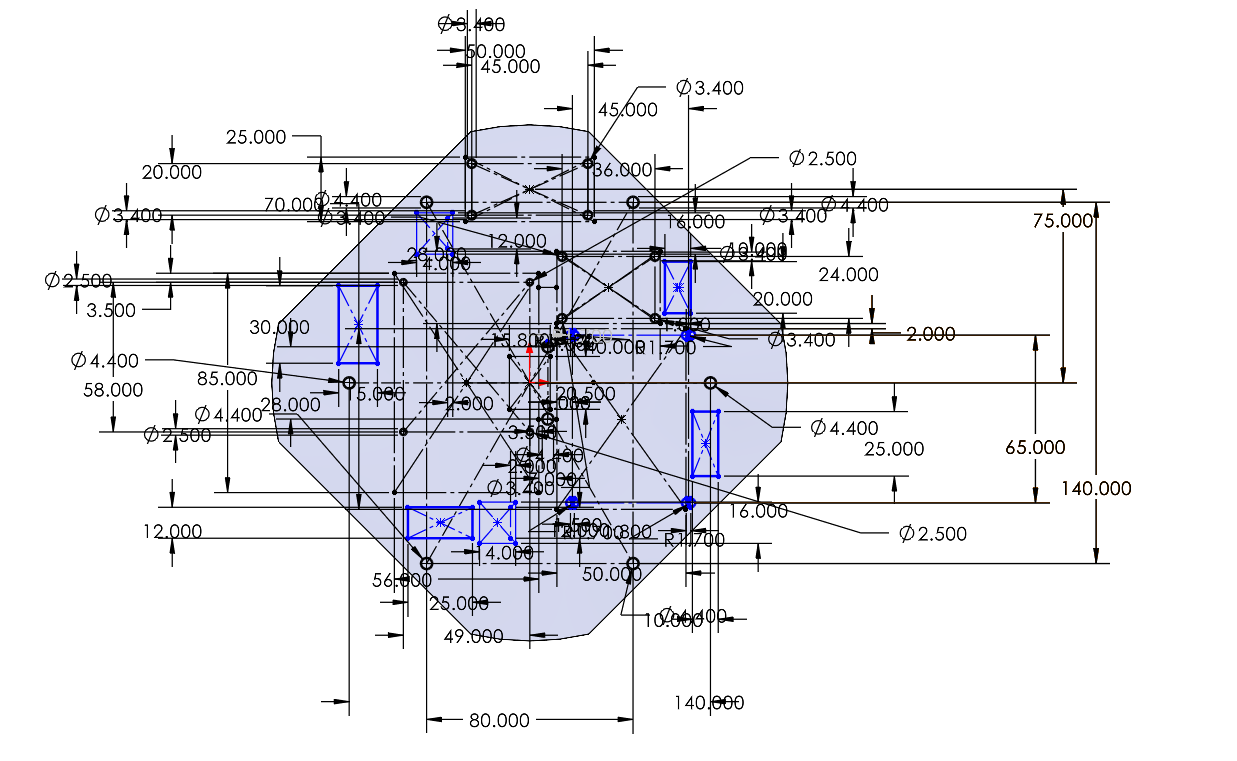
The wheel radius is 25 mm, and the measured center-to-wheel distance used by the later kinematics is 115 mm.
Plan the decks around the parts
Before I finished the mounting holes, I listed every part that needs space on the rover. A plate layout is hard to change after printing, so the physical BOM must come before the final hole pattern.
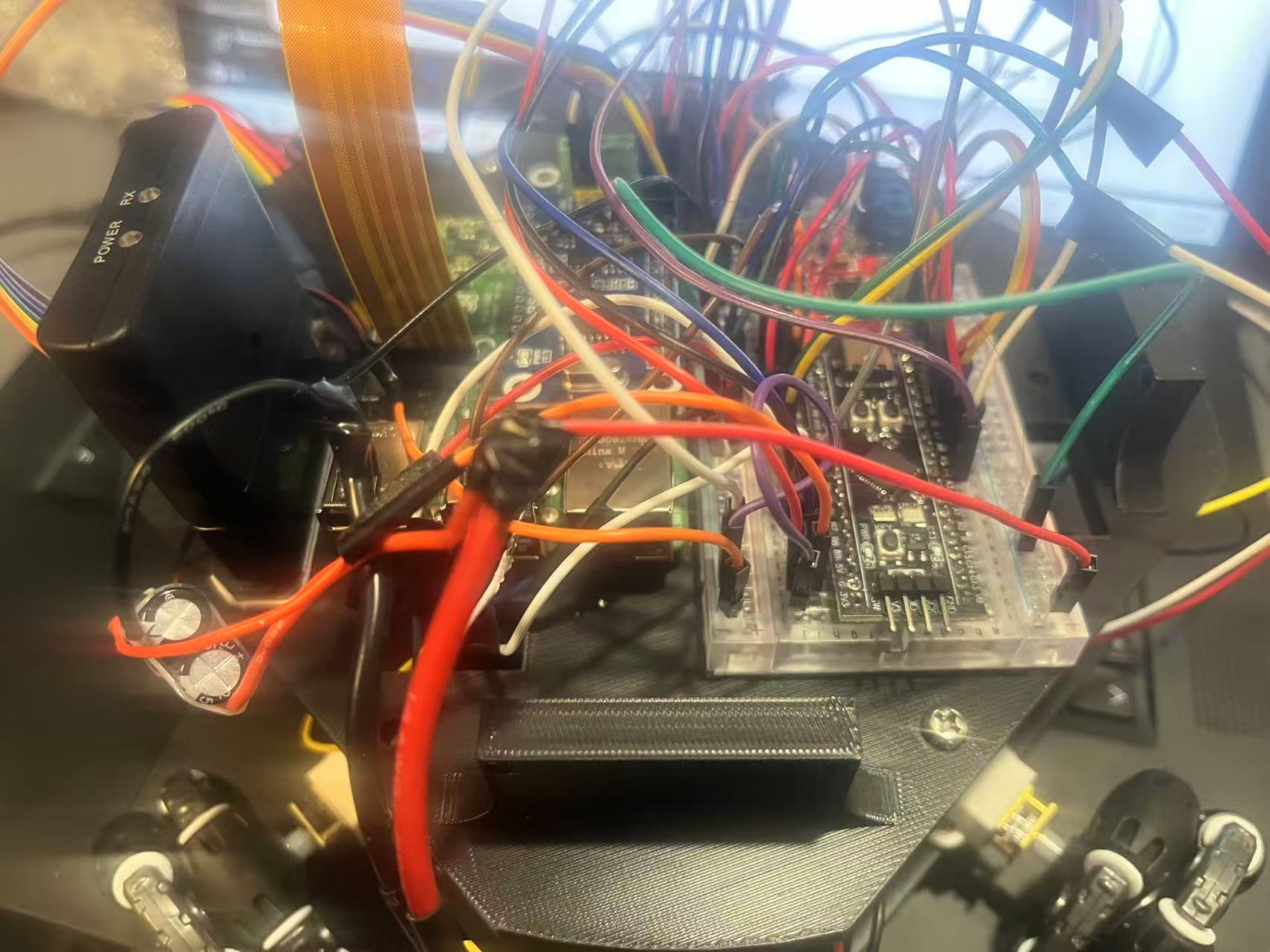
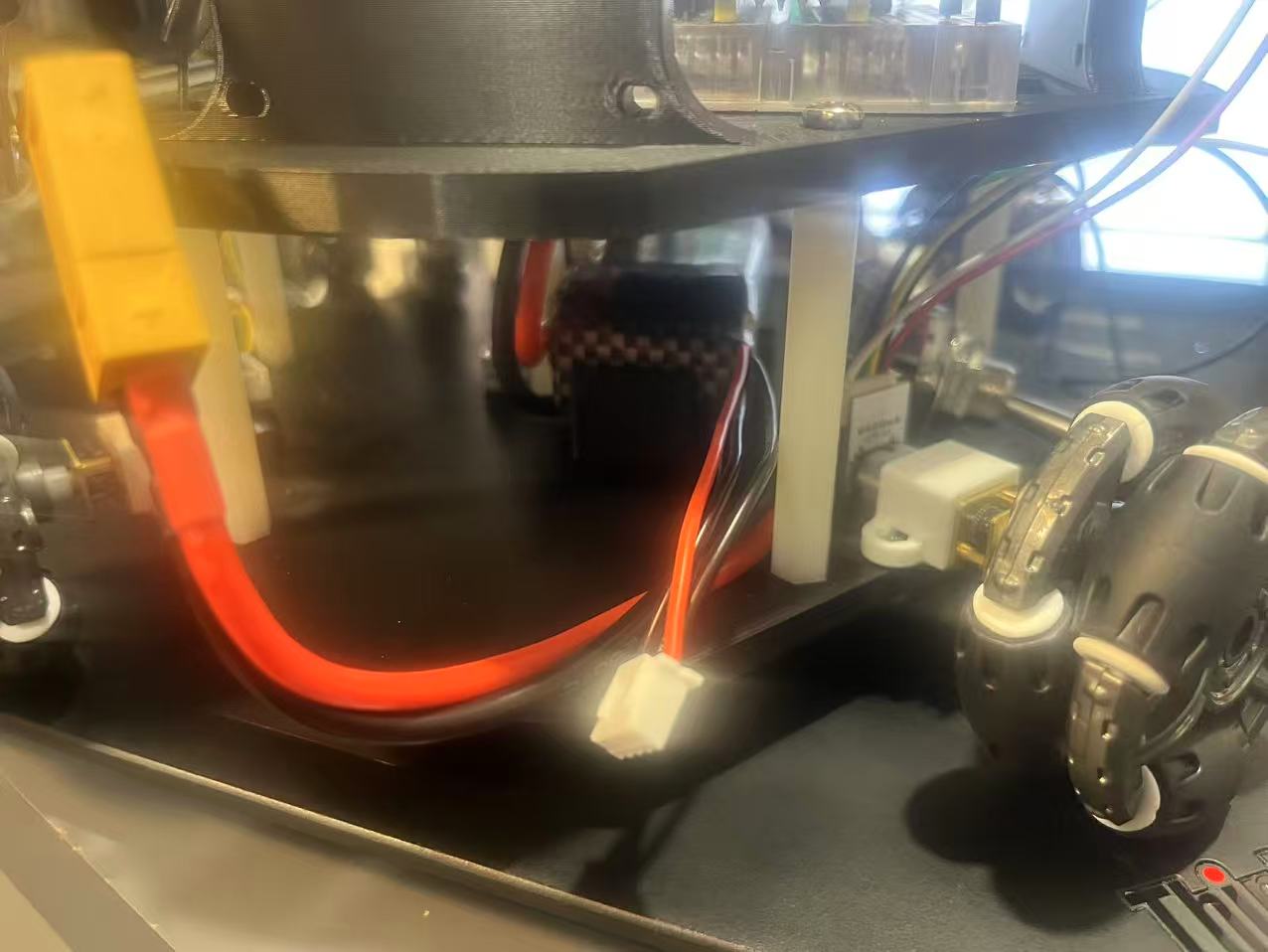
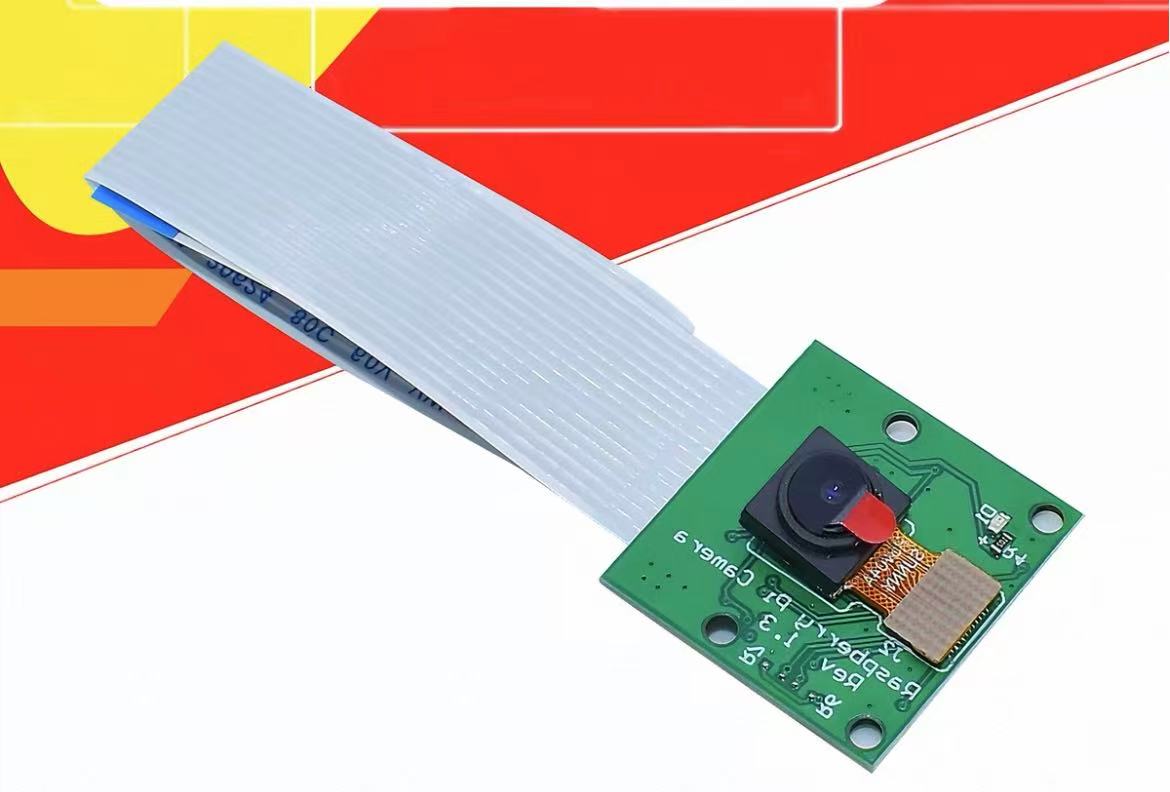
The top deck has room for a Raspberry Pi and a breadboard. I also left space near the corners for HC-SR04 sensors or cameras. The lower deck holds the battery and IMU near the center. This keeps the heaviest part low and close to the middle of the rover.
I expected the center position to help the IMU, but I did not measure that effect during Week 1. Treat it as a design choice.
Measure the real boards
The mounting holes took more time than the plate outline. Online drawings were often missing dimensions, and clone boards did not always match the drawing I found.
The faster method was to measure the actual board with calipers. I measured the hole spacing, verified connector clearance, and allowed a little extra space where the fit did not need to be exact. This method also protects the design from small changes between sellers.
Print with useful margin
I expected that the center of the plates can bend, so the first print used PLA-CF and a high wall count. A later load test suggested that normal PLA is probably enough.
Even so, I keep some extra strength and empty space. Research robots tend to gain new sensors, adapter boards, wires, and temporary test hardware. A plate that fits only the first BOM becomes difficult to use very quickly.
Split the computing work
The Raspberry Pi runs ROS 2, localization, and later SLAM code. I used a Raspberry Pi 4B with 8 GB of RAM and a 32 GB microSD card. I recommend at least 32 GB because ROS builds, recorded data, and visual SLAM images can use a large amount of storage.
Linux on the Pi is not the best place for exact motor and encoder timing. I therefore used a microcontroller for the real-time layer:
four PWM motor outputs
four hardware encoder inputs
eight motor direction pins
CAN messages
heartbeat safety
sensor timing
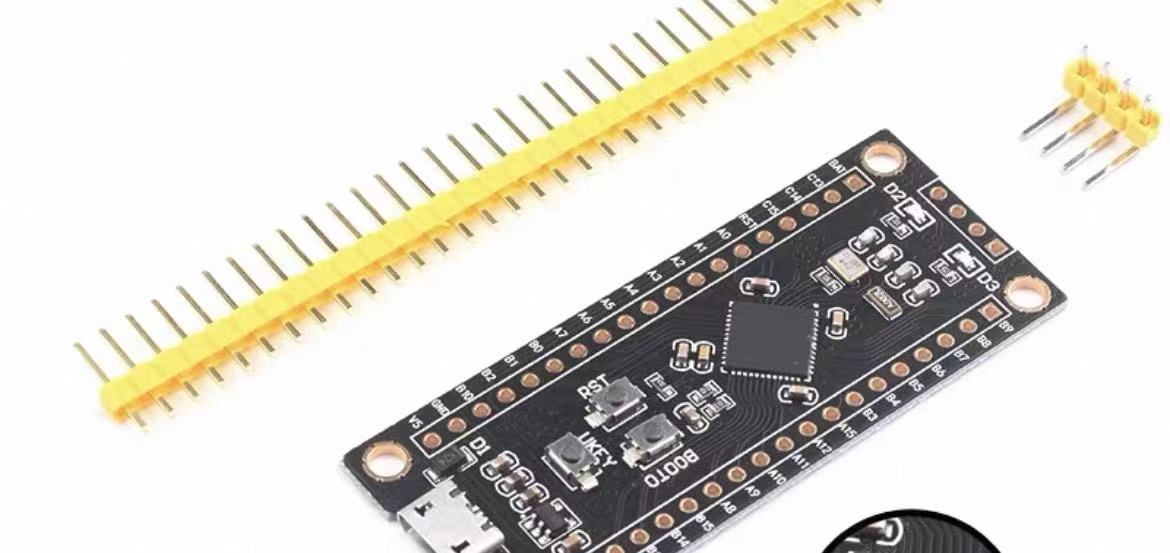
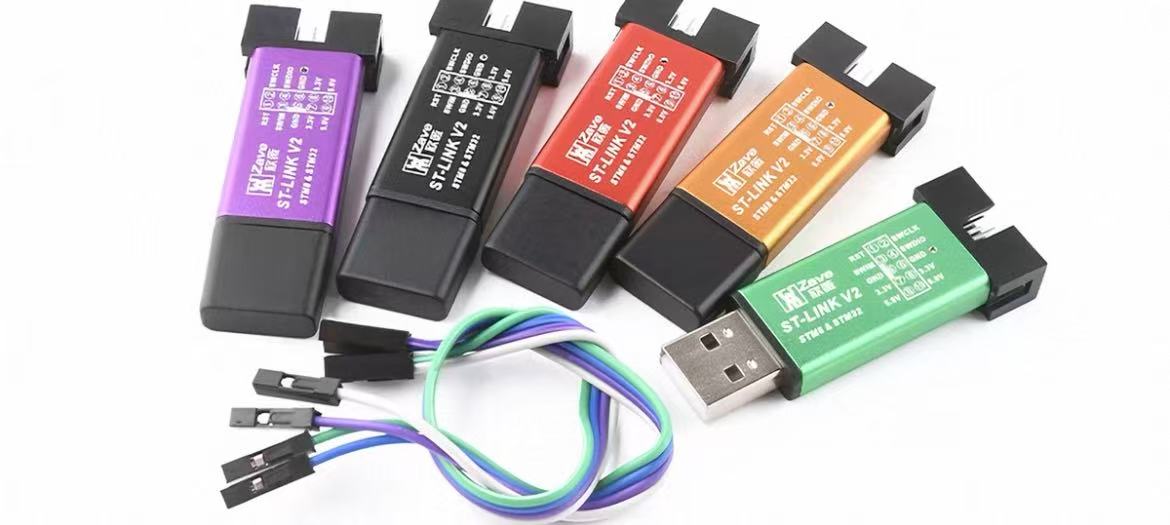
I chose STM32 because the boards are small, fast, inexpensive, and have useful hardware timers. The main cost is setup time: the toolchain is less friendly than many Arduino-style boards, and flashing normally needs an ST-Link.
Another MCU can work. The important step is to count its timers, channels, alternate pin functions, and GPIO before buying it.
The timer mistake
I first bought an STM32F103 Blue Pill without making a full timer table. The design needs one timer with four PWM channels and four more timers for the four encoders. In total, I needed five suitable timers.
The F103 board I chose did not fit that plan, so I changed to an STM32F411CEU6 Black Pill.
Job |
Final timer |
|---|---|
Four motor PWM channels |
TIM1 |
Front-left encoder |
TIM2 |
Front-right encoder |
TIM3 |
Rear encoder 1 |
TIM4 |
Rear encoder 2 |
TIM5 |
A one-page peripheral table before buying the MCU prevents this mistake.
Why I used CAN
The Raspberry Pi and STM32 need a communication link. I chose CAN because I wanted experience with the message-based communication used in cars.
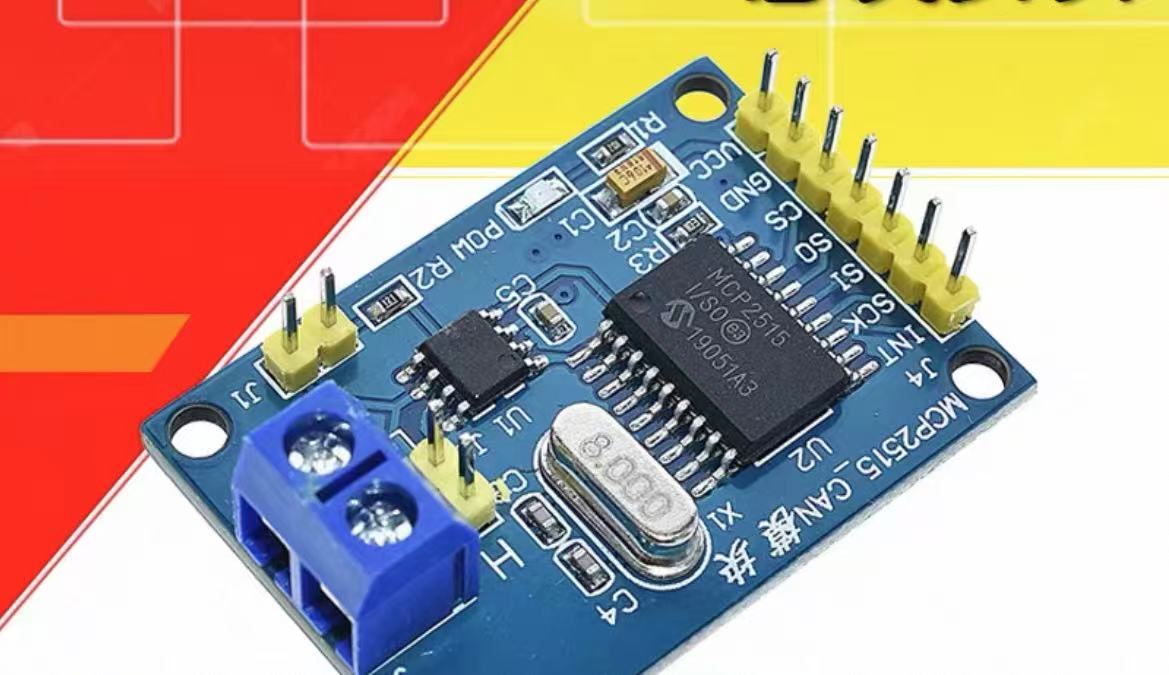
The Raspberry Pi uses a Waveshare CAN HAT. The STM32 side uses an MCP2515 and a TJA1050. The MCP2515 is the CAN controller and talks to the STM32 over SPI. The TJA1050 is the transceiver that drives the physical CAN bus.
The STM32F411 does not contain a CAN controller, so this choice added another chip, another clock setting, and more driver code. For a short point-to-point link between one Pi and one MCU, UART is much easier and fast enough. I recommend CAN only when learning CAN or adding more bus nodes is also part of the project.
Main parts
The table gives the main parts and the reason each one exists. Exact sellers can change, so the electrical role matters more than one product link.
Part |
Role in this rover |
|---|---|
Raspberry Pi 4B, 8 GB |
ROS 2, localization, and SLAM computer |
32 GB microSD |
Operating system, builds, logs, and data |
STM32F411CEU6 Black Pill |
Real-time motor, encoder, CAN, and sensor control |
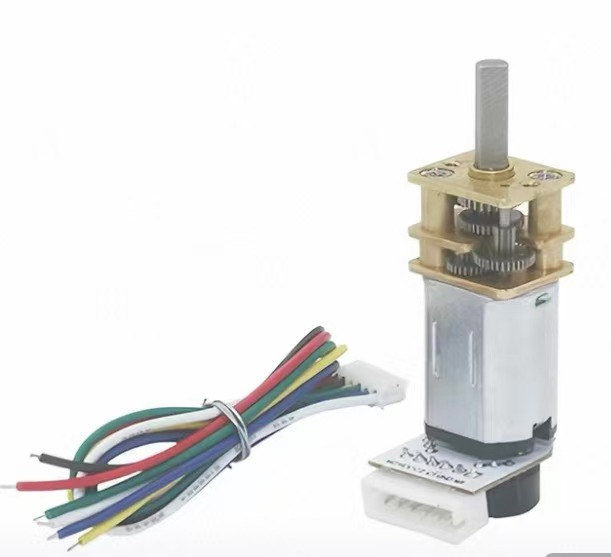
Four GA12-N20 encoder motors |
Wheel drive and encoder feedback |
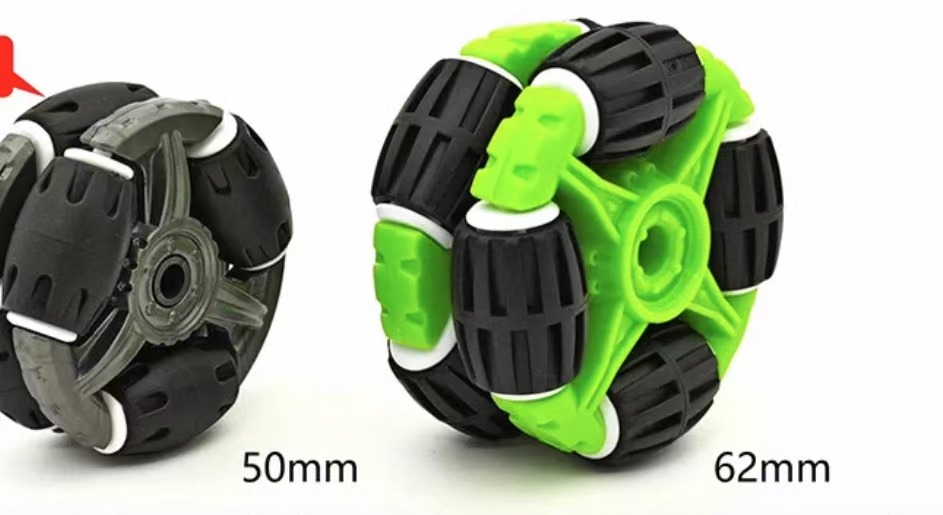
Four 50 mm omni wheels |
Holonomic X-drive motion |
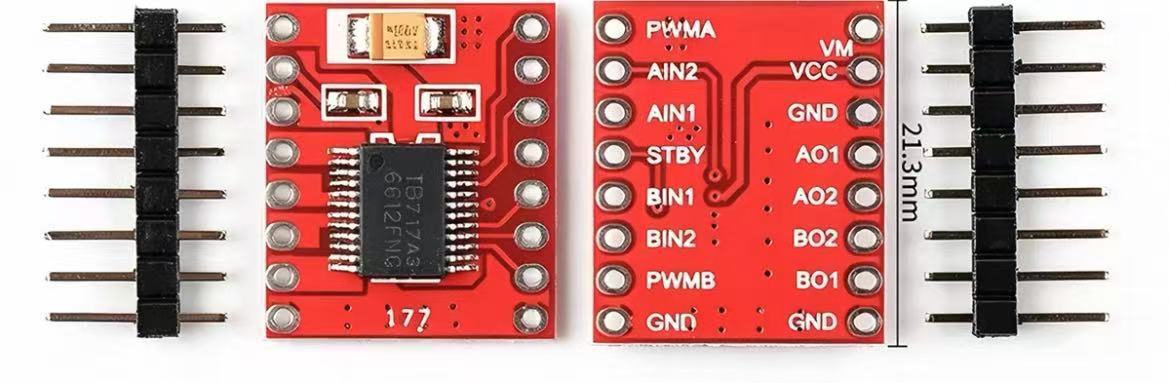
Two TB6612 modules |
Four motor-driver channels |
MCP2515 plus TJA1050 module |
STM32-side CAN controller and transceiver |
Waveshare CAN HAT |
Raspberry Pi-side CAN interface |
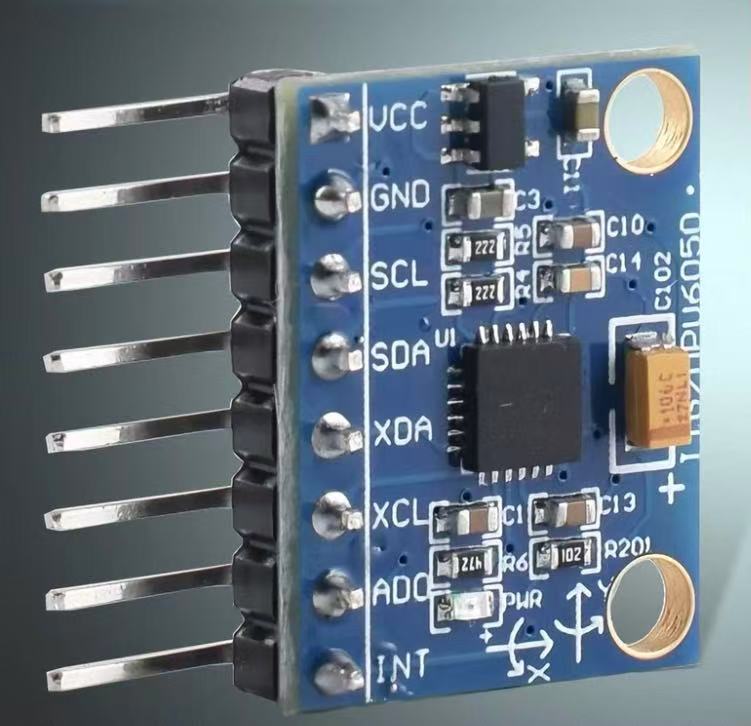
MPU6050 |
IMU used for later sensing work |
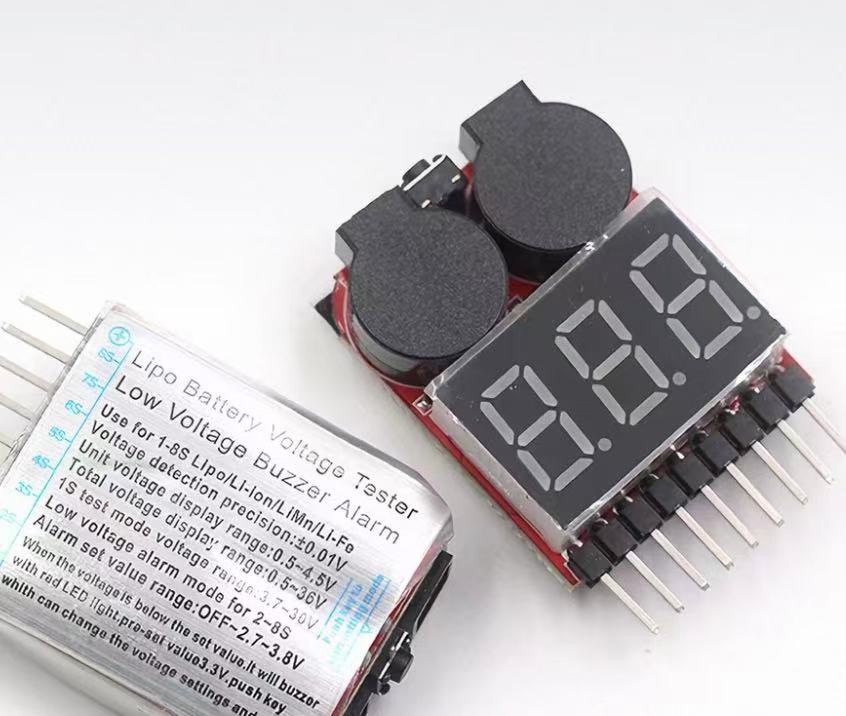
3S 1500 mAh 35C LiPo |
Main battery |
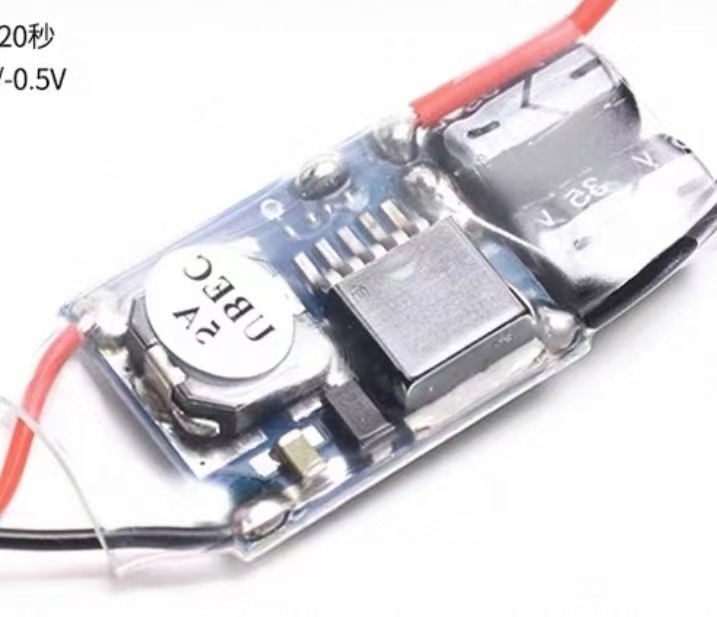
5 V, 5 A UBEC modules |
Low-voltage power |
ST-Link |
STM32 programming and debug |
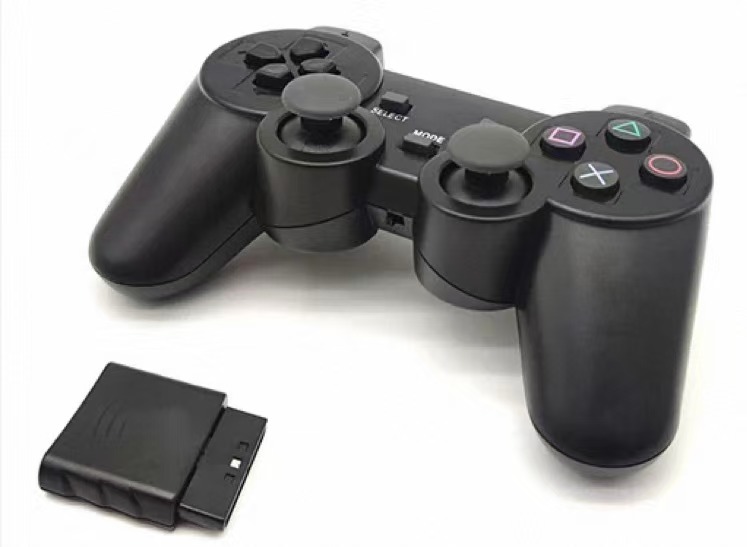
PS2-style controller |
Manual drive input |
Battery and power
I considered a USB power bank, loose-cell battery holders, and a LiPo pack. Battery holders used too much space, while a power bank cost more and included features I did not need. I chose a 3S 1500 mAh 35C LiPo, recorded as 11.4 V, because it also works with common RC connectors and power parts.
The battery rail powers the motor side of the TB6612 boards. At first, one 5 V, 5 A UBEC powered the low-voltage electronics. Later, I moved the Raspberry Pi to its own 5 V, 5 A supply branch so that a fault in the motor-control branch was less likely to reach the most expensive board.
Two power branches do not automatically provide galvanic isolation. They can still share ground, and CAN or UART signals can also connect the two sides. A real isolation plan must consider both power and communication paths.
An isolated DC-DC converter can reduce fault spread, but it cannot prevent every short circuit. The power design must also include fuses, current limits, clear wire colors, correct connectors, and one-branch-at-a-time testing.
Full wiring reference
The diagram below records the complete breadboard wiring. It is dense because it shows almost every connection in one view. Use the PDF for zooming, and use the source files when you need to edit the circuit.
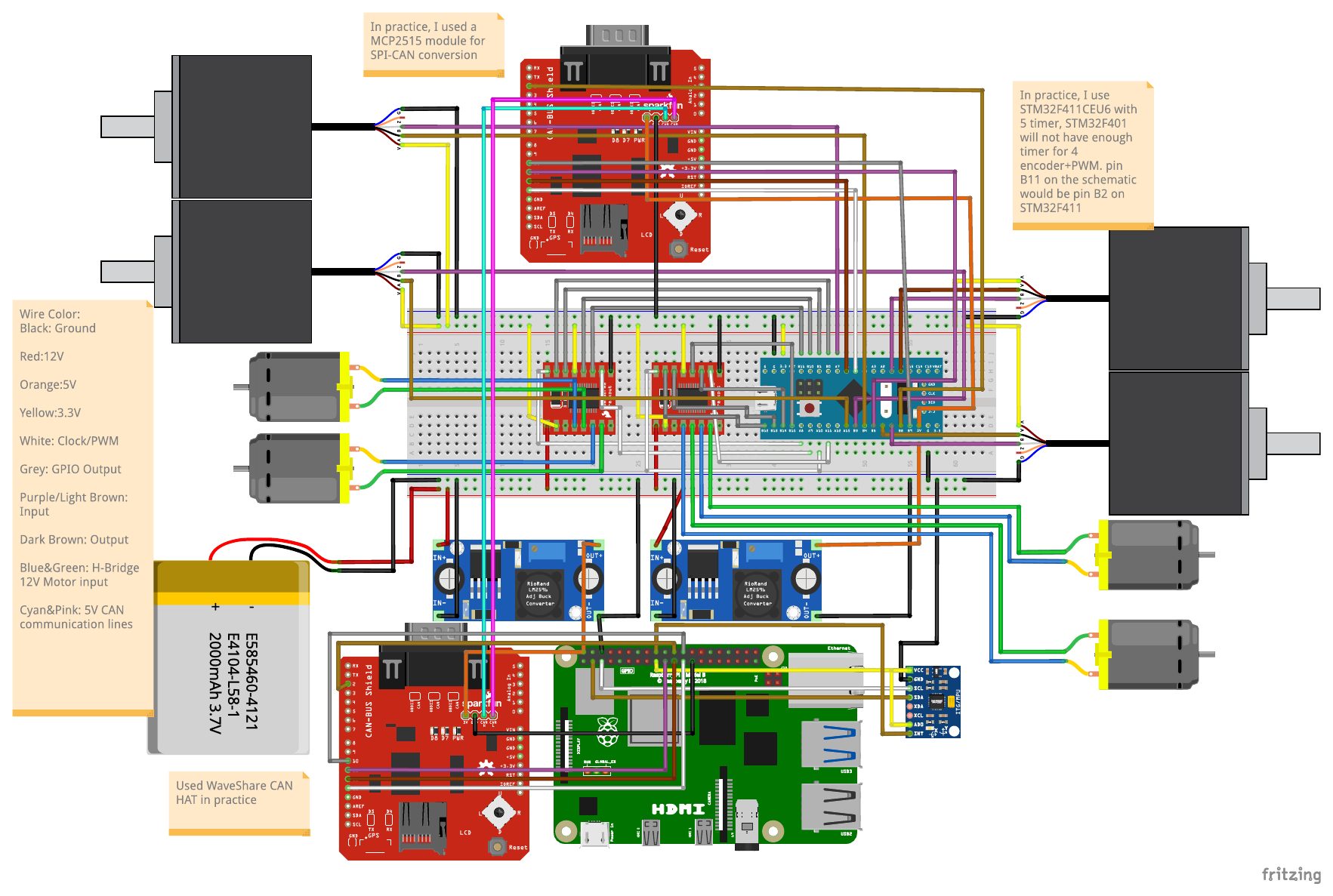
Breadboard wiring for the rover.
Two short-circuit accidents
I had two serious electrical faults during bring-up. The exact short point was not proven in either case, so I do not present a likely cause as a confirmed fact.
The first fault destroyed one ST-Link, one STM32, and two TB6612 boards. The second destroyed one STM32 and one TB6612 board. The total loss was two STM32 boards, three TB6612 boards, and one ST-Link. The Raspberry Pi stayed safe because I treated its power path separately.
After a possible short, I use this first check:
Remove the battery, USB cable, ST-Link, and every other power source.
Measure resistance or continuity from GND to the 3.3 V, 5 V, and 12 V rails.
Verify weak GPIO and supply pins against GND.
Compare the reading with a known-good board when possible.
Watch whether resistance rises while capacitors charge.
Test the ST-Link by itself. My failed unit no longer lit up.
Reconnect one module at a time with a current-limited bench supply.
A continuity beep is only a quick clue. It does not prove that a board is broken, and no beep does not prove that the board is healthy. A damaged board can still fail only when power or communication is applied.
The main lesson is to respect the 12 V rail. Turn off all power before changing wires, keep high- and low-voltage wiring easy to separate, use fuses and current limits, and keep spare low-cost boards during bring-up.
Part 2 - Program the rover
Hardware and firmware are part of the same bring-up process. A motor is not ready until software can drive it safely, and an encoder is not ready until its count can be observed.
STM32 was a good hardware choice, but its tools took much more time than I expected. The shortest workflow that worked for me was:
Set pins and peripherals in STM32CubeMX.
Generate the project.
Build it with CMake in VS Code.
Flash the result with STM32CubeProgrammer.
Use CAN and small Python tools for testing.
How to read the repository
Do not start by reading every file from top to bottom. Follow the system from hardware configuration to firmware and then to the Raspberry Pi.
Order |
File |
What to learn from it |
|---|---|---|
1 |
Open it in CubeMX. Verify the pinout, clock tree, timers, SPI, GPIO, and code-generation settings. |
|
2 |
Read the Debug and Release presets, build folder, generator, and toolchain file. |
|
3 |
See how the firmware target includes the CubeMX-generated CMake project. |
|
4 |
Read the motor map, encoder code, PWM code, startup, CAN receive path, and 20 ms control loop. |
|
5 |
Read only the mode, bitrate, send, and receive functions first. Most register helpers can wait. |
|
6 |
Treat this as the message contract between C and Python. |
|
7 |
See the small SocketCAN wrapper used by the Pi tools. |
|
8 |
See how raw CAN encoder frames become a simple four-wheel test display. |
|
9 |
Read the low-level controller driver first, then the program that maps input to CAN motor commands. |
For main.c, the fastest reading order is:
This order shows the control flow before the low-level details.
Configure STM32CubeMX
Download STM32CubeMX, then open SummerSLAM.ioc instead of creating the configuration again by hand.
Inside CubeMX, read these views in order:
Pinout and Configuration: verify TIM1 PWM, TIM2-TIM5 encoder mode, SPI1, MCP2515 GPIO, motor direction GPIO, and SWD.
Clock Configuration: verify the 100 MHz system clock.
Project Manager: verify the project name and CMake toolchain choice.
Generate Code: regenerate only after you verify which project files CubeMX can overwrite.
The important lesson is that the .ioc file is the hardware setup. The generated C files are an output of that setup.
Build with CMake in VS Code
The project already contains the build files. Start with CMakePresets.json, then read the root CMakeLists.txt, and only then open the generated cmake/stm32cubemx/CMakeLists.txt.
From the stm32 folder, the command-line form is:
cmake --preset Debug
cmake --build --preset Debug
The same presets can be selected from the CMake tools in VS Code. I installed the STM32 extension, but I never made every feature in that extension work reliably. Building in VS Code and flashing with a separate ST tool was a simpler and more stable workflow.
Embedded build errors often arrive as a long chain: compiler path, CMake generator, Ninja, include path, generated source, and library errors can all look related. An LLM is useful for turning the full error message into a short test list. I recommend changing one item at a time and rebuilding after each change, rather than accepting a large tool-generated rewrite.
Flash with STM32CubeProgrammer
I used STM32CubeProgrammer instead of spending more time on the VS Code flashing tools.
Connect the ST-Link to SWDIO, SWCLK, GND, and the correct reference voltage. Open CubeProgrammer, connect to the target, select the ELF file produced in the Debug build folder, program it, verify it, and reset the board.
A USB-to-TTL adapter is also useful for simple debug text. Verify the current .ioc file before connecting it, because this project later reused the original UART pins for the ultrasonic sensors.
Finalize Dupont wiring, then draw the PCB
I delayed the PCB because PCB design sounded much more difficult than it really was. Online advice quickly leads to topics such as 90-degree corners, SI/PI, return paths, crosstalk, and many other rules. I felt that I needed to understand all of them before drawing a board.
That was the wrong priority for this rover.
Dupont wiring is already a poor electrical and mechanical system. The wires are long, contacts can become loose, the routing is hard to read, and moving one wire can disturb another. Even a rough but correctly connected working PCB will usually be more stable and easier to debug than the Dupont harness I ended up using.
The important condition is to finalize the wiring first. Use Dupont wires to prove the pin map, power rails, motor channels, encoder channels, and communication link. Once those connections stop changing, draw the schematic and make the PCB. Do not wait until the end of the project.
For a low-speed rover like this one, do not let advanced SI/PI advice stop the first board. Draw clear connections, use correct voltage and polarity, add decoupling, choose traces that can carry the current, label connectors, and run ERC and DRC. A right-angle trace is not the main risk here. A loose Dupont wire or a wrong power connection is much more likely to cause trouble.
An LLM can help review the schematic and can notice a missing connection or a wrong net name. It is less reliable at checking the full PCB layout, so use datasheets, ERC, DRC, and your own review for that step.
My practical advice is: once the wiring works and is final, just draw the PCB. Order it while working on kinematics, so manufacturing time runs in parallel with software work.
Make one motor turn
Make the first firmware test small. Lift the wheel off the floor, start one TIM1 PWM channel, set the two direction pins, and begin with a low duty cycle. After one channel works, repeat the same test for the other three motors.
The complete implementation is in motor_set_pwm(). Read that function together with the four PWM start calls. The first link explains direction and duty limits. The second shows which timer channels must be running.
Testing one motor first makes power, direction, and pin errors much easier to locate. Testing all four at once gives too many possible causes when nothing moves.
Read all four encoders
The STM32 timers can decode quadrature encoder signals in hardware. The startup code enables TIM2, TIM3, TIM4, and TIM5 with TIM_CHANNEL_ALL.
Read encoder_update() before reading the CAN transmit code. The function shows why TIM3 and TIM4 need software overflow handling: they are 16-bit timers, while TIM2 and TIM5 are 32-bit.
At this stage, the goal is only to verify that every encoder count changes. Wheel labels, sign, counts per revolution, and the X-drive scale are handled in the Week 3 odometry chapter.
Test CAN on the Raspberry Pi
The STM32 uses mcp2515.c. Start by reading mode setup, bitrate setup, and message send. The lower register helpers are useful only when debugging the driver itself.
On the Pi, read MsgId and timing constants, then encode functions, and finally decode(). This file must match the CAN IDs and payload order in main.c.
The bus runs at 500 kbit/s. After the CAN HAT and SocketCAN interface are configured, bring the interface up and watch raw frames:
sudo ip link set can0 up type can bitrate 500000
candump can0
For a clearer four-wheel display, run:
cd ros2_ws/src
sudo python3 encoder_monitor.py
Turn one wheel at a time. The raw view shows CAN IDs 0x200 and 0x201, while encoder_monitor.py shows which motor count changed.
CAN and tool problems I found
The MCP2515 library read the wrong register after sending a frame. The fix was to read the real TXBnCTRL register.
The library did not include the can_frame type and SocketCAN-style flags used by this project, so I added can.h.
CubeMX code generation can remove manual CMake source entries. Verify that mcp2515.c is still part of the build after regeneration.
A Python match case used a plain name, which Python treated as a new variable instead of a value to compare. The decoder now uses if and elif.
Raspberry Pi GPIO is not 5 V tolerant. The PS2 receiver uses 3.3 V logic, while the TJA1050 module still needs its stated 5 V supply.
Add the PS2 controller
I did not include a hand controller in the first plan. Later, I bought a low-cost PS2-style wireless controller so I can test the rover without writing a full ROS command path first.
Read the controller files in two layers. In PS2.py, start with PS2Controller, then read the byte transfer and the packet read. The lower _RawGPIO class is only the GPIO access layer.
Next, open PS2_Drive_Test.py. Read the heartbeat thread before the main drive loop. The heartbeat must keep running even when a controller read takes time.
Run the drive test with:
cd ros2_ws/src
sudo python3 PS2_Drive_Test.py
Lift the rover before the first test. Verify forward, reverse, left, and right, keep a fast way to remove power, and verify the heartbeat stop before driving on the floor.
The low-level controller driver took more time than it deserved. This protocol is not the main research topic, so using an existing library or an LLM-assisted driver is reasonable. The real hardware checks still matter: verify the logic voltage, clock timing, button map, disconnect behavior, and stop path.
Drive test
The video shows the rover moving during bring-up.
The video proves that the rover can move, but it is not a full safety or performance test. It does not measure motor speed, current, controller disconnect behavior, or heartbeat timing.
What worked at the end
One motor worked first, followed by all four motors. The encoders produced counts, and the STM32 sent encoder frames to the Raspberry Pi over the real CAN link. The rover also moved during the drive test.
These results verify the basic frame, power path, motor drivers, PWM, encoder capture, CAN transport, and manual command path. They do not claim that closed-loop speed control, calibrated odometry, full controller safety, localization, or SLAM was complete at this stage.
Main lessons
Finalize the physical BOM before placing every mounting hole.
Count timers, channels, and pin conflicts before choosing the MCU.
Use UART unless CAN is part of the learning goal.
Draw and review the power path before connecting the LiPo.
Add fuses, current limits, and connectors that cannot be reversed.
Keep 12 V, 5 V, and 3.3 V wiring easy to identify.
Test one power branch and one motor channel at a time.
Keep spare STM32, TB6612, and ST-Link boards during bring-up.
Once the Dupont wiring works and is final, draw the PCB instead of waiting.
Leave mechanical room for later sensors and wiring.